
Implementing Content Security Policy (CSP)
If your website uses a Content Security Policy (CSP), you'll need to configure it to allow Curator's embedded feeds to load correctly. CSP headers control which external resources your site can load, and without the right configuration, your feed may not display properly.
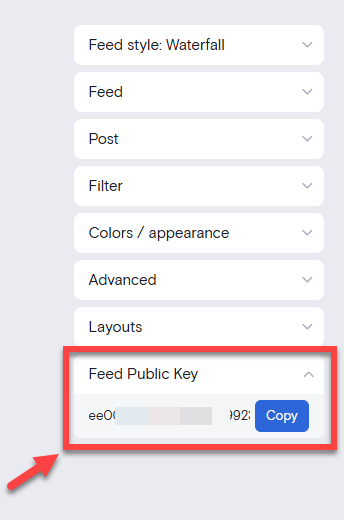
Finding Your Feed Public Key
Log in to your Curator dashboard at app.curator.io
Go to the Publish Page
Navigate to the feed you're embedding
Copy the Feed Public Key shown on the page
Required CSP Directive
Add the following directive to your Content Security Policy header:
Content-Security-Policy: style-src 'self' 'nonce-curator-<feed-public-key>';Replace <feed-public-key> with your feed's actual public key.
Multiple Feeds
If you're embedding multiple Curator feeds on your site, include a nonce for each feed's public key:
Content-Security-Policy: style-src 'self' 'nonce-curator-<feed-public-key1>' 'nonce-curator-<feed-public-key2>' 'nonce-curator-<feed-public-key3>';The CSP configuration method varies by platform and server. Consult your hosting provider's documentation for specific instructions on adding CSP headers.
Incorrect CSP configuration can prevent your feed from loading. Test your feed after adding the CSP directive to ensure it displays correctly.