Using the Schedule
The Schedule helps you plan and schedule social media posts across your connected accounts. View your upcoming content in a calendar layout and create new scheduled posts directly from the dashboard.
Accessing the Calendar
Log in to your Curator dashboard at app.curator.io
Click Schedule in the top navigation bar
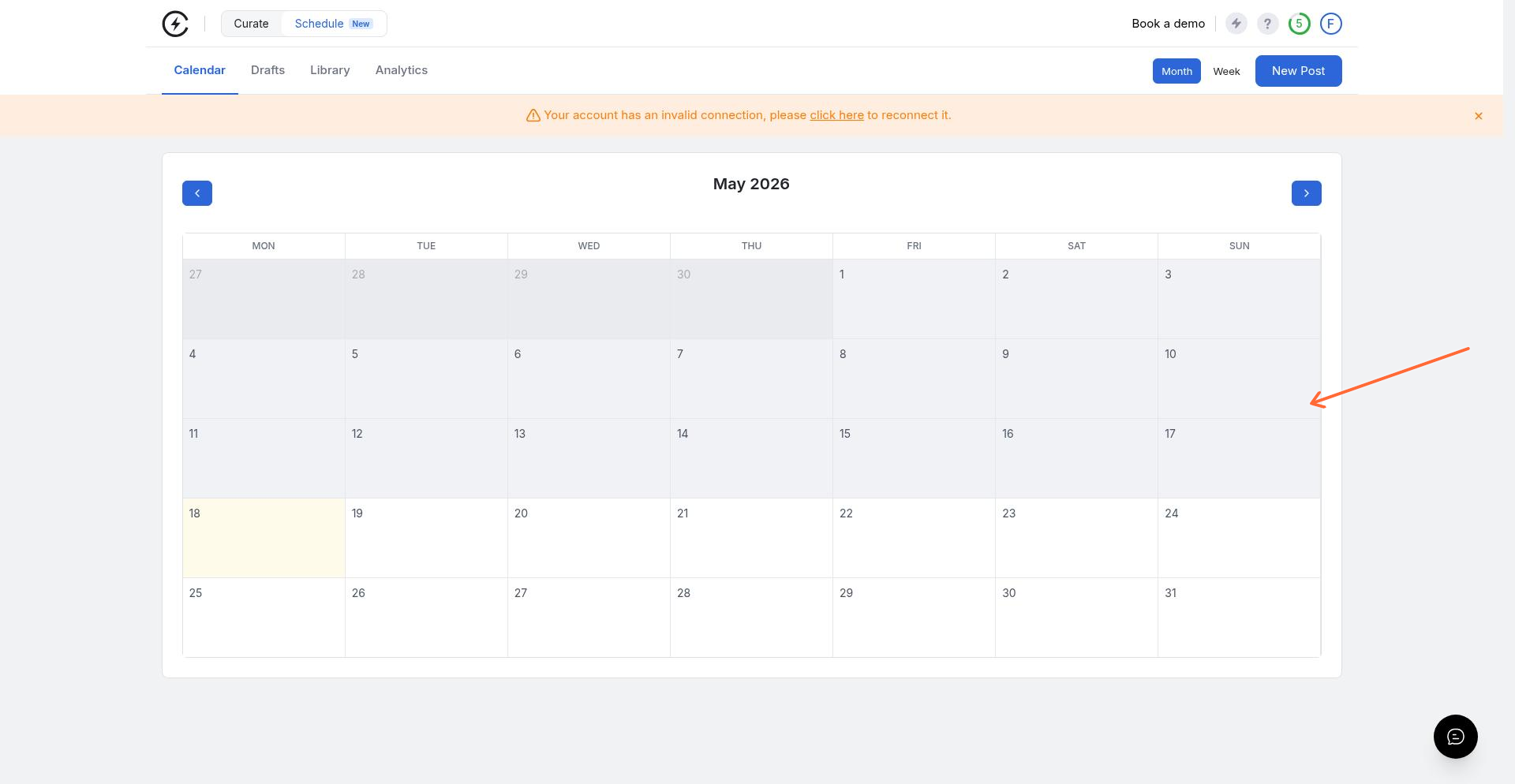
The Schedule opens a calendar showing a month or week view
Calendar Views
Switch between two calendar layouts:
Month view — See all your scheduled posts for the entire month at a glance
Week view — Focus on a single week with more detail per day
Click the Month or Week buttons in the toolbar to toggle between views.
Creating a Scheduled Post
In the Calendar, click New Post in the toolbar (or click directly on a calendar date)
In the New Post modal, select your social network:
Instagram — Available now
Facebook, X/Twitter, YouTube, LinkedIn, TikTok — Coming soon
If prompted, connect your social media account
Add your post content (caption, media, etc.)
Choose an action:
Save draft — Save the post without scheduling
Schedule — Set a specific date and time for publication
You must connect a social media account before creating scheduled posts.
Navigating the Calendar
Use the top panel to access additional views:
Calendar — Return to the main calendar view
Drafts — View saved drafts (coming soon)
Library — Access your media library (coming soon)
Analytics — View scheduling analytics (coming soon)
Social Network Support
Currently, the Schedule supports scheduling to Instagram. Additional networks are planned:
Network | Status |
|---|---|
Available | |
Coming soon | |
X/Twitter | Coming soon |
YouTube | Coming soon |
Coming soon | |
TikTok | Coming soon |
Related Content
To learn about creating custom posts for your Curator feed (rather than social media scheduling), see Creating Custom Posts.
For information on how your feed automatically refreshes content from social sources, see Auto-refresh Settings.